
How to open Sigma X3F files on Windows 10 and 11
X3F is the RAW format of Sigma's Foveon cameras. Windows can't show these files on its own: Explorer and the Photos app display a blank icon, and most photo software either ignores them or supports only some models. Here is how to open them quickly.
Why Windows can't open X3F files
The Foveon sensor records three color layers at every pixel instead of the usual Bayer pattern, so X3F files need a dedicated decoder. Sigma's own software, Sigma Photo Pro, reads them, but it is slow to browse a folder with: every file takes several seconds to open. Microsoft's RAW codecs and most general-purpose viewers don't support the format at all.
Open X3F files with Fast Photo Sorter
Fast Photo Sorter is a Windows viewer built around Sigma X3F files. It decodes them natively, with no external converter, for every Foveon generation:
- SD9, SD10, SD14, SD15 and the first DP1 / DP2 compacts (including DP1s, DP1x, DP2s, DP2x)
- Merrill: SD1, SD1 Merrill, DP1 / DP2 / DP3 Merrill
- Quattro: dp0 / dp1 / dp2 / dp3 Quattro, sd Quattro and sd Quattro H, including X3I files from SFD mode
Sigma fp and fp L DNG files open as well, together with JPEG, TIFF, ARW, NEF, PEF, CR2, CR3, RAF and PNG.
Three steps
- Download and install Fast Photo Sorter (free 14-day trial, Windows 10 / 11, 64-bit).
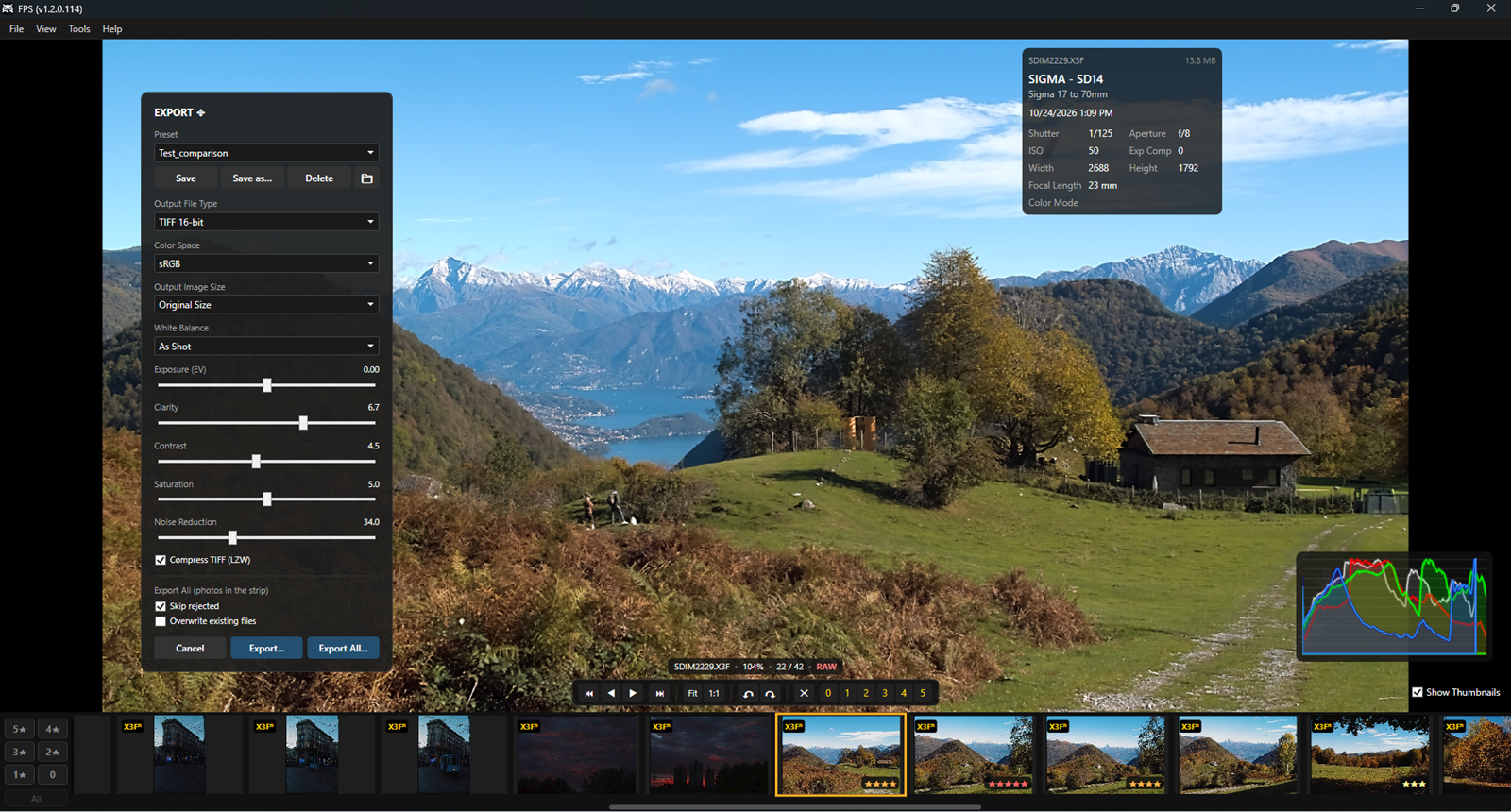
- Open the folder with your X3F files: thumbnails appear immediately.
- Move through the shots with the arrow keys. Press Z to zoom to 100% and check focus on the full RAW.
By default you browse using the JPEG preview embedded in each X3F, so even a folder of hundreds of files scrolls instantly. Switch on native decoding in Tools → Preferences when you want to judge the real Foveon detail.
What else you can do with your X3F files
- Rate and reject shots from the keyboard, then filter down to your best ones
- Compare two similar shots side by side with linked zoom
- See blown highlights at a glance (press J), read straight from the sensor data
- Export to 16-bit TIFF or JPEG, one photo or a whole selection
- Save them as DNG and finish them in Lightroom or Camera Raw
- Merge X3I files and brackets into one HDR or long exposure image (Stacking)
- Open the current file in Sigma Photo Pro with one click when you need it