
Convert Sigma X3F to 16-bit TIFF
Most editors can't read Sigma's X3F RAW files, but all of them read TIFF. Converting your Foveon files to 16-bit TIFF keeps the full tonal range and lets you finish them in Photoshop, Affinity Photo, GIMP, Capture One or any other editor.
Convert one photo
- Open the folder in Fast Photo Sorter and select the photo.
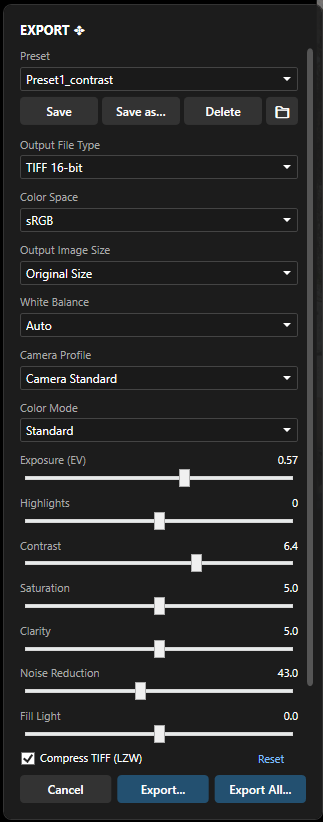
- Choose File → Export TIFF 16-bit. The Export panel opens with a live preview.
- Choose a Color Mode and adjust white balance, exposure, Highlights, Fill Light, clarity, texture, contrast, saturation and noise reduction if needed. Hold \ to compare with the default rendering.
- Click Export and choose where to save the TIFF.
Convert a whole folder
Rate your shoot first, filter the thumbnail strip to the photos you want (for example 4 and 5 stars), then click Export All. Rejected shots can be skipped, the folder structure can be kept, and an interrupted export resumes where it stopped.
Export options
- 16-bit TIFF, optionally LZW-compressed, with EXIF data preserved
- JPEG with adjustable quality, when you need a smaller file to share
- Linear DNG, to finish the photo in Lightroom, Camera Raw or another raw editor
- Texture slider for the grain of rock, bark and foliage, matched to Sigma Photo Pro at its default
- Color space: sRGB, Adobe RGB or Pro Photo RGB for further editing
- Original size or reduced output size
- Sigma Photo Pro color modes (Standard, Vivid, Neutral, Portrait, Landscape, FOV Classic Blue, Monochrome) and the FPS looks Classic Color, Classic BW and Classic BW Soft
- Highlights and Fill Light to recover bright areas and open up shadows
- Presets to save and reuse your favorite settings
- Blown highlights rendered as clean neutral white, without the pink or magenta casts typical of clipped Foveon files
Merge X3I files and brackets
The X3I files of the dp Quattro and sd Quattro (SFD mode), or any series of bracketed shots, can be merged into one HDR image and exported as a 16-bit TIFF. See Stacking.
Supported cameras
All Sigma Foveon X3F files: SD9, SD10, SD14, SD15, DP1 / DP2 and their s and x versions, SD1 and the Merrill compacts, dp Quattro, sd Quattro and sd Quattro H (also with DC lenses, in APS-C crop mode).